


Subscribe to MacYourself via RSSSubscribe to MacYourself via EmailFollow MacYourself on Twitter
Mini DisplayPort to HDMI adapter
Kanex HDMI Products for Mac

Modify the default clock in OS X’s menu bar to show the full date

Modify the default clock in OS X\'s menu bar to show the full date

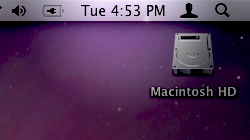
By default, Mac OS X’s menu bar is set to show an abbreviated version of the day of the week and the current time. Customize your time settings to display more information.

If you’re forgetful like me and often have no idea what time, day, or even month it is, then you’ve probably been let down time after time when you look to the clock on your Mac’s menu bar and only get some of the information you’re in search of. Sure, Leopard introduced a dynamic dock icon for iCal which shows the date, but it’s inconvenient to look to the top of the screen for the time and then to the bottom for the date. Why not have it all in the same place?

With a few easy tweaks, OS X’s menu bar can be edited to show the full day, date, and time so it’s all always available for a quick glance.

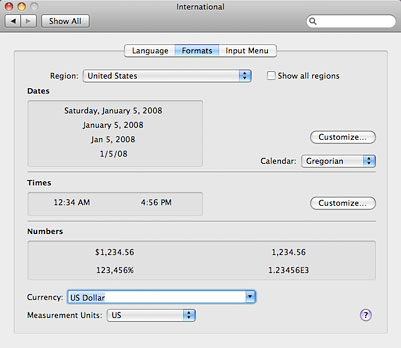
1.) To start off, let’s go into System Preferences and click on the International button (on the top row of icons). Once the International window comes up, click the Formats tab on the top. Here you will find details on how Mac OS X displays dates, times, numbers, currency, etc.
Modify the default clock in OS X's menu bar to show the full date

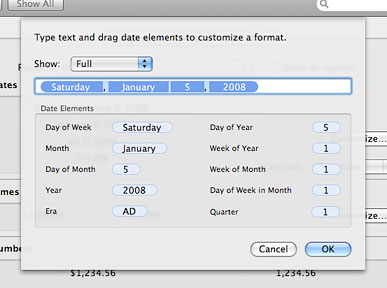
2.) In the Dates section, click the Customize button and the window pictured below will pop up. Under the Show drop-down menu, select Full. Click inside the white text box, select all of the text in it (Cmd + A), and copy it (Cmd + C). Once the text is copied, click Cancel.
Modify the default clock in OS X's menu bar to show the full date

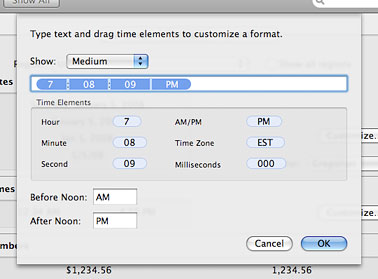
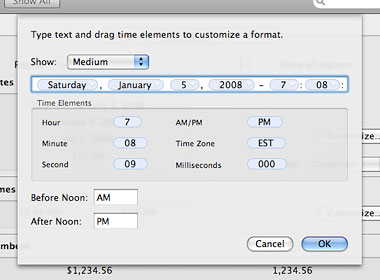
3.) Next, we’re going to go into the Times section and click its Customize button. In this window, choose Medium from the Show drop-down menu. This is the template the menu bar pulls from to display the time.
Modify the default clock in OS X's menu bar to show the full date

4.) If you click to place the cursor at the beginning of the text box (make sure nothing is selected), you can paste what we copied in the previous step (Cmd + V). The day and full date will be plopped right in front of the time. You may want to add a bit of punctuation to break up the two pieces of information so they don’t run into each other. For example, I added a space, then a dash, then another space between the year (2008) and beginning of the time (7). Click OK to save your changes.
Modify the default clock in OS X's menu bar to show the full date

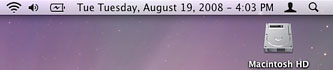
5.) That was easy enough! So we’re all done, right? Not quite. As you can see, the abbreviated day of the week (Tue) is still stuck in front of the full day (Tuesday). A quick change can take care of that.
Modify the default clock in OS X's menu bar to show the full date

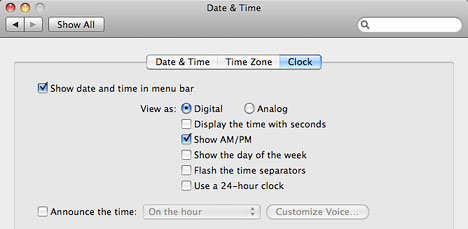
6.) In System Preferences, click on the Date & Time button (4th row of icons). Choose the Clock tab at the top and you’ll see a short list of options. Uncheck the “Show the day of the week” option and the abbreviated version will magically disappear.
Modify the default clock in OS X's menu bar to show the full date

7.) That’ll do it! Now you’ve got a full-featured menu bar that conveniently tells the absent-minded (a.k.a. me) the full day of the week, month, date, year, and time all in one easy to find place.


Modify the default clock in OS X's menu bar to show the full date
Tags: ,
Share/Save/Bookmark
Share/Save It
Digg ThisStumbleUponDel.icio.usTwitterFacebook

19 Comments Have Been Posted (Leave Your Response)

This tutorial was very helpful. Thank you very much!

Oh man this is awesome. Thanks!

This tweak no longer works on Leopard 10.5.6 :-(

at least on the following systems

PowerMac G5 Dual 1.8
PowerBook Pro 2.2 Ghz
iMac 1.83Ghz

Wish it did though… Why would they break something so helpful?

Ken,

I’m not quite sure why it’s not working for you, but I can confirm the trick still works in 10.5.6.

I have been looking for this mod for a long time. Thank you very much for sharing. This was very helpful. Worked perfectly for me (MacBook Pro Core Duo, 2 GHz, OS X 10.5.6)

This doesn’t work for me either unfortunately
MacBookPro
10.5.6

Does not work for me either. MacBook Pro Core Duo 2.6 GHz, Leopard, latest patches (10.5.6).

This tip worked great for me! I’m on 10.5.6 as well.

For those who said it didn’t work, perhaps you didn’t set your “Show:” selector to “Medium” as shown in steps 3 & 4. Mine came up set to “Short”, and editing that didn’t do anything, but editing Medium did. Medium seems to be the only format used by the menubar clock. Good luck.

Brilliant, thanks a bunch for this tip – it’s greatly appreciated as its a feature I miss from my Windows desktops.

Hey, that tip w/ medium made it work for me! Thanks a lot in general, great to get the date on my screen shots ;)

Thanks so much! I use this several times a day!

Yay! This has bugged me forever! Thanks for all your tips!

Sir, please consider reviewing this tweak for Snow Leopard 10.6.1. It don’t (seem to) work. Thanks.

Thanks a lot, I used your tip, a year and a half ago, and bookmarked this page. I am now back and with a fresh install of 10.5.8 PB G4 it just works.
As some mentioned before, Make sure to be on MEDIUM on the “Times” tab.
This time I just added the Date(nber)+Month and didn’t unclick the “show day of the week” in the pref/date & time/Clock tab.
I haven’t rebooted yet, so that might get jammed up later, but the Date and Month inserted themselves in the right place.
Thank you again

I finally got it to work after much fiddling – keep trying different variations and it should work. The weird thing for me: I had to use the “long” option rather than the “medium” in the “times” dropdown on two completely different OS versions – a PPC running 10.4.11 and an Intel running 10.5, so if “Medium” isn’t working try the other options.
They sure don’t make it easy!

No. Still don’t work on Snow Leopard for me. Can someone confirm if they got it to work on 10.6.2 please?

Webbadger,
This tip is for prior versions of Mac OS X and does not work in 10.6. Apple added a new feature in Snow Leopard’s System Preferences that lets you add the month and date there, though.

thank you, very nicely presented.

Have Something To Say? Join The Discussion!

  (required)
  (required; will be kept private)
  (optional)