


One of the most common questions Mac users ask is, “How do I reset my Mac’s password?” If you’re using Mac OS X 10.7 Lion or 10.8 Mountain Lion, there are a couple ways you can go about it – and they’re both pretty easy to do.
MacYourself previously published a popular article explaining how to reset the password on Macs running 10.4, 10.5 and 10.6. Unfortunately, those methods no longer work in 10.7 Lion or 10.8 Mountain Lion. That doesn’t mean you’re out of luck – there are new ways to reset a password in Lion.
As mentioned in our original article, it’s important to remember that anyone with physical access to your computer (whether it is a Mac, Windows or Linux) can eventually find a way in. There’s no such thing as complete security if someone who knows what they’re doing is sitting in front of your computer. If you’re truly concerned about the security of your files, you should look into using FileVault to encrypt them.
Reset password using Lion Recovery
If you bought a brand new Mac with Lion pre-installed, the hard drive includes with a recovery partition that gives you access to a bunch of different tools. Here’s how to take advantage of this utility to reset your Mac’s password:
- Shut down your Mac and turn it back on while holding down the Command and R keys at the same time until you see the Lion Recovery screen.
- From the menu bar at the top, select Utilities > Terminal.
- In the Terminal window type resetpassword and press Enter.
- Use the Reset Password utility to select your hard drive, choose your user account, and enter a new password.
Reset Lion password with Single User mode
Anyone running Mac OS X Lion can take advantage of this method:
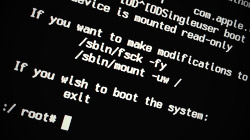
- Shut down your Mac and turn it back on while holding down the Command and S keys at the same time until your see a black screen with white text. This is known as Single User mode.
- You can skip this step, but it’s recommended that you don’t because it will check the consistency of your hard drive. At the prompt, type fsck -fy and press Enter.
- Once the disk check is complete and the prompt returns, type mount -uw / and press Enter.
- Type launchctl load /System/Library/LaunchDaemons/com.apple.opendirectoryd.plist and press Enter.
- Type ls /Users and press Enter. All of the usernames on the computer will be listed, which is helpful if you don’t know or remember what these are.
- Type dscl . passwd /Users/username password while replacing username with one of the users displayed in the previous step and replacing password with the new password of your choice. Press Enter. You will likely get an error message about a file or directory not being found – it’s safe to ignore this.
- Type reboot and press Enter.
