


Subscribe to MacYourself via RSSSubscribe to MacYourself via EmailFollow MacYourself on Twitter
Apple Products and Accessories from Amazon.com

How to lock your Mac screen with a keyboard shortcut

How to lock your Mac screen with a keyboard shortcut

When you need to temporarily leave your Mac unattended, it’s a hassle to put it to sleep and wake it up again. What’s the quickest way? Set up a simple keyboard shortcut that shows your Mac’s login screen without logging you out.

Mac users have a bunch of different ways to prevent others from snooping on their Mac when they need to step away for a few minutes. Some like to set up a hot corner that starts their screensaver. Others like to click a menu bar icon that turns off their display. There are even some 3rd party apps that add this functionality. The problem with these approaches is that they cut off some background processes or require system preferences to be configured a certain way. These seem like workarounds rather than real solutions.

An even better way to lock your Mac’s screen is to press a quick keyboard shortcut that instantly shows a login screen without closing any of the things you were working on. It requires just a couple minutes to set up initially – here’s how:

Lock Screen Service

  1. Launch Automator from your Applications folder.
  2. Select “Service” as the document type.
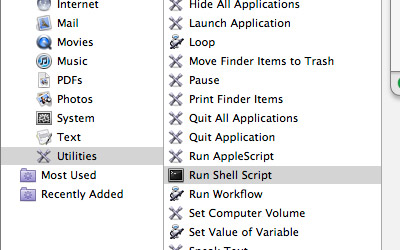
  3. Select “Utilities” from the list on the left, then double-click “Run Shell Script” in the next column.
    Lock Mac screen with keyboard shortcut
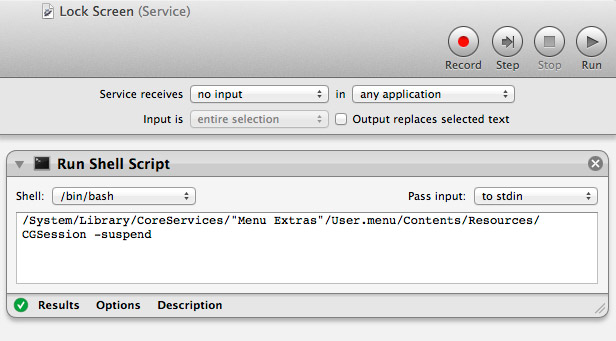
  4. On the top-right side of the screen, adjust the drop-down menus so the statement reads: “Service receives [no input] in [any application]“
  5. Copy the following command into the large text box that appears:

    /System/Library/CoreServices/"Menu Extras"/User.menu/Contents/Resources/CGSession -suspend
    Lock Mac screen with keyboard shortcut
  6. Go to File > Save and name your service “Lock Screen”. Once saved, you can now quit Automator.

Lock Screen Keyboard Shortcut

  1. Launch System Preferences and go to the Keyboard pane.
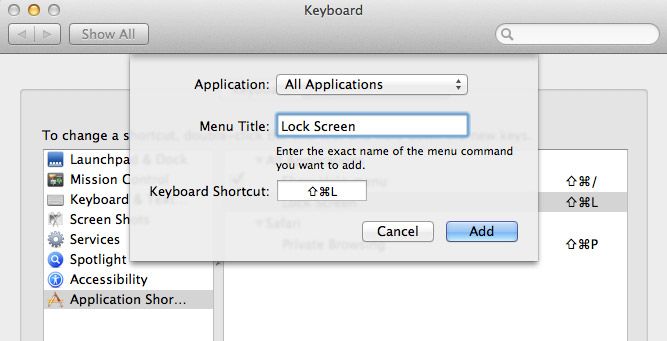
  2. Next, select the “Keyboard Shortcuts” tab. From the list on the left, select “Application Shortcuts”. Click on the plus (+) button below to add your new shortcut.
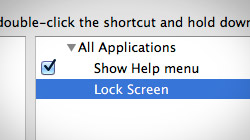
  3. In the dialog box we’ll want to leave “All Applications” selected in the first menu. Enter “Lock Screen” as the Menu Title. Please note this has to be exactly the same name you entered when saving the service in Automator. Finally, enter your keyboard shortcut. Let’s go with Command+Shift+L.
    Lock Mac screen with keyboard shortcut
  4. Click Add and you’re all done!

Now when you press your keyboard shortcut (Command+Shift+L), the Mac login screen will immediately be displayed. You’re still technically logged in and processes such as large downloads will continue in the background. But you can leave your Mac unattended without worry – no one will be able to access your account until you enter your password. When you do, everything on your desktop will be there just as you left it!

17 Comments Have Been Posted (Leave Your Response)

Or you could just click on your computer name on the top right of your screen and select login window and get the same results.

I’ve got error message when I ran this script.it says

“/System/Library/CoreServices/”Menu: Nos such file or directory”

how can I fix this problem??

s3eker,
It looks like there was a formatting issue with the quotes in our line of code. The post has been updated. If you copy & paste the Terminal command now, it will work. Thanks!

Wait wait wait wait…
Why is Command-Opt-Eject not the fastest way???

Command+Option+Eject doesn’t lock the screen, it puts the computer to sleep. Not the same.

Is this method better than what’s in my menu bar …where I switch partitions or go to the Log-In Screen. When I reenter my password I’m back to my desktop with everything like I left it. I was surprised that this method wasn’t even mentioned …or maybe it was “click a menu bar icon that turns off their display.” Mine isn’t an icon. I click on my name and it gives me two choices, my husband’s partition or the Login Screen. Would a download still continue in the background using this method?

LAT,
“Better” is subjective, but we think the method in our article is the most convenient once it’s set up. Keyboard shortcuts are generally faster than mouse movements. To answer your question, though, internet connections do stay active in the background so downloads will continue.

Nice tutorial! Thanks! Command+Shift+L worked but not Ctrl+Shift+L. Not sure why?

ALso, since I don’t have access to System Prefs, I just made an application!!

I tried this on my machine (10.8.3) and it didnt work, It took me to a grey screen w/ a cursor and no way to enter my password. Ended having to hard reboot (hold power for 5seconds) to get back to a regular login.

Thoughts?

Use Ctrl+Shift+Power instead!

Sorry it’s not the same, Ctrl+Shift+Power puts computer to sleep

So not as easy as it is on Windows then? Windows button and the letter L????

I like something on Mac like the gestures but some things seem to be so stupid and unnecessarily awkward for what is supposed to be the best OS in the world.

Sometimes I think Windows cops to much flack, somethings it just does a lot better than mac.

Not trying to be difficult or unappreciative by the way, I love Mac and this website. I just think somethings are silly.

Excellent Job! Worked like a charm on my Old MacBook Pro. Thank you for your insight!

I am pretty new to Mac as well. I have setup the service without issue, and if I hit the “Play” button, within Automator, the screen locks without issue. But, when I setup the keyboard shortcut, it never invokes anything. Any ideas?

thank s so much!!! this really works and mines has a cool 3d square turn to the lock screen. haha! NEATO!!!

Have Something To Say? Join The Discussion!

  (required)
  (required; will be kept private)
  (optional)