


Subscribe to MacYourself via RSSSubscribe to MacYourself via EmailFollow MacYourself on Twitter
Mini Displayport to HDMI adapter from Amazon.com

Maximum volume still too quiet? Make MacBook speakers louder

Maximum volume still too quiet? Make MacBook speakers louder

A common complaint amongst MacBook, MacBook Air, and MacBook Pro owners is the seemingly low “maximum” volume level of the built-in speakers. It’s frustrating, but there are a few ways to get around it.

Although some may blame Apple’s hardware for the quiet speakers, it’s actually Mac OS X’s fault. Folks running Windows in Boot Camp might notice audio played from there is much louder at full blast than on the Mac side. So the speakers themselves are fine – it’s merely Apple being too conservative with their software. I’m sure they have their reasons (such as power management & damage prevention), but it sure is annoying, isn’t it?

Depending on the type of audio you would like to amplify, there are a few ways to get louder sound out of your quiet Mac laptop speakers. Especially for those times when external speakers are not an option, these are invaluable tips.

iTunes Equalizer

Trying to listen to something in iTunes from across the room or with a bunch of people around? A simple solution is to venture into the iTunes equalizer (Window > Equalizer) and drag the Preamp slider all the way up. Make sure the “On” box is checked too. That should put some more power behind those speakers!
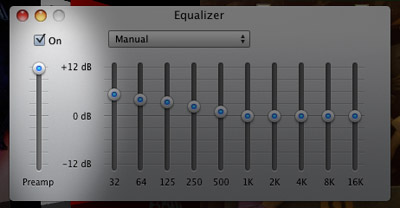
Make Mac laptop speakers louder in iTunes

VLC instead of QuickTime & DVD Player

Watching a video in QuickTime or DVD Player is a common task for Mac users. If the sound is too low, try the free VLC player instead. Using the playback controller you can pump up the volume a bunch more – apparently up to 400%!
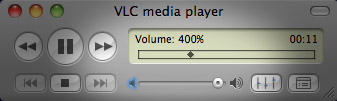
Make Mac laptop speakers louder in VLC

Audio Hijack Pro

This is the real system-wide solution. Rogue Amoeba Software’s Audio Hijack Pro is a multi-purpose program that does a heck of a lot more than just make your Mac’s speakers louder. But for the purposes of this article, that’s all that matters. Whether it’s a YouTube video in Safari, a video chat in iChat, or an original composition in GarageBand, this program does the trick. You can download Audio Hijack Pro for free and use it in trial mode for 10 minutes at a time. To unlock full functionality, you must pay $32 – a fair price if you’re going to take advantage of the software often. In any event, this is how you can get the job done in Audio Hijack Pro:

  1. In the lower left corner, click the + button to add a new preset.
  2. Click the Input tab. You can choose a specific application to work with, but I recommend selecting “System Audio” from the Source Type drop-down.
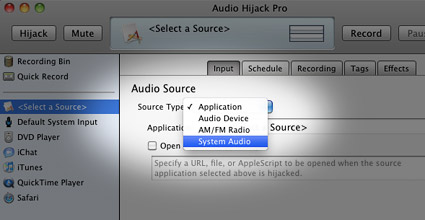
    Make MacBook speakers louder
  3. Install the Soundflower add-on for free within Audio Hijack Pro. This gives the software access to the entire system’s sound.
  4. Set your computer’s regular system volume all the way up in Mac OS X.
  5. Click the Effects tab in Audio Hijack Pro and then drag the Gain slider all the way to the right (238%).
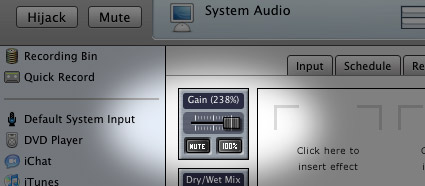
    Make MacBook speakers louder
  6. Click the Hijack button and your volume should get a nice boost! You’ll have to leave Audio Hijack Pro open in order for the louder sound to stay in effect. When you want it to stop, just quit the program.

While nothing will ever beat a good pair of headphones or external speakers, these three methods will definitely make your MacBook’s built-in speakers sound significantly louder than before. Be aware that long periods of unreasonably loud audio can damage tiny speakers. But this is more of a disclaimer to be safe rather than a warning of things to come… you shouldn’t experience any such problems. Have fun!

Share/Save It
Digg ThisStumbleUponDel.icio.usTwitterFacebook

17 Comments Have Been Posted (Leave Your Response)

I think there’s probably a good reason that MacBook speakers are limited to a certain volume… namely, hardware constraints. Pushing the speakers past their factory volume settings could damage the speakers badly.

Where is the Hijack button?

Kirsten,
The Hijack button is in the top-left corner of Audio Hijack.

lol, took me 5 minutes to find the hijack button too… xD

I consider the poor sound level of macbooks speakers a design flaw.
Having 6 people standing around your machine all being as quite as possible.
to hear the content your playing.

it’s so bad that I often just do demo’s with dell’s or thinkpad’s so people can hear what i’m playing with out having to carry powered speakers with me.

I find that my speakers are sometimes too loud, and this is without any of the above on my macbook.

The Audio Hijack Pro fix is a great solution. Thanks!

I think you guys are crazy… The Mac speakers and volume are the loudest of any laptop available on the market.
sometimes if peops mess about with audio settings it can lower the max volume of the laptop… So before you try every other method to boost the laptops sound try this…

1. Go to your Apps Folder
2. open the UTILITIES Folder
3. Open Audio MIDI Setup
4. Go to WINDOWS (TOP BAR MENU)
5. select – SHOW AUDIO WINDOW
6. Click on the BUILT IN OUTPUT ICON
7. The SOURCE should be INTERNAL SPEAKERS
8. The FORMAT – Select 96000 hz

Then try and play a song and hear how loud your sound is… You will be surprised…
Just make sure your player is NOT set to 400% sound or some other crazy levels like that cause it will likely make you ears bleed or, even worse, damage your speakers.

Hope this helps…

i did what matsher suggested and wala what a difference
thanks mat

I tried MatSher’s suggestion but the audio on the MacBook Air is still too low – had to use Audio Hijack.

The ITunes Equilizer help A LOT!!!!!! =)

my problem with mbp speakers is not so much the volume as the QUALITY of the sound.. it’s not good at all.. for one thing there’s no base whatsoever… if you’re listening with a program that’s not iTunes you don’t have access to an equalizer.. (like listening on Rhapsody, Pandora, AOL radio, etc..)

WOWWWW!!!
Thanks, MatSher, it really kicked it in!!!

Thanks, MatSher.
I have searched a lot but haven’t got good idea before finding your guide. And your solution fixes it. Your suggest is wonderful.

Boom works quite well too. Seems simpler than HiJack (also MUCH cheaper– I think 8.99 and a 7 day free trial for Mac).

http://www.globaldelight.com/boom/

I’d like to change the format to 96000hz, as Matsher said, but it keeps going back to 44100,0 hz.

Anybody Any suggestions?
Thanks in advance!

Matsher just saved me the cost and inconvenience of external speakers. If you have this volume ( or lack of it) issue with your laptop… just follow the instructions he lays out. Works like a charm… plenty of volume now. Thanks Matsher.

Have Something To Say? Join The Discussion!

  (required)
  (required; will be kept private)
  (optional)