


Subscribe to MacYourself via RSSSubscribe to MacYourself via EmailFollow MacYourself on Twitter
Mini DisplayPort to HDMI adapter
Kanex HDMI Products for Mac

Reformat your USB flash drive to access its full storage capacity

Reformat your USB flash drive to access its full storage capacity

Reclaim lost storage space by getting rid of the hidden files and junk that accumulates on your USB flash drive over time.

Nearly everyone has a USB flash drive for portable data storage nowadays, and for the most part they work with almost any computer effortlessly. Sometimes, though, a particular brand or model will not play nice when you frequently connect it to both Windows and Mac systems. Both operating systems routinely create hidden files, and items you thought you deleted may still be there after all. After a while you might not be able to take full advantage of your flash drive’s full capacity, because these unwanted files are taking up space.

For example, if I have a 4GB drive and I only have about 1.5GB of usable data on it, I might only have about 750MB of free space left. Of course, this doesn’t quite add up to my flash drive’s full size so clearly something I can’t see is there taking up space.

The first and most common way to fix this problem is to ensure your Trash has been emptied in Mac OS X. When you delete a file from your USB flash drive on a Mac, it goes to a special hidden directory on the drive and stays there until you empty the Trash. You must do this while your storage device is connected.

If the previous method doesn’t help you, the next one certainly will. Follow these steps to erase and reformat your drive:

1.) If you have any important data on your USB flash drive, make sure you temporarily copy the files to your Mac’s desktop.

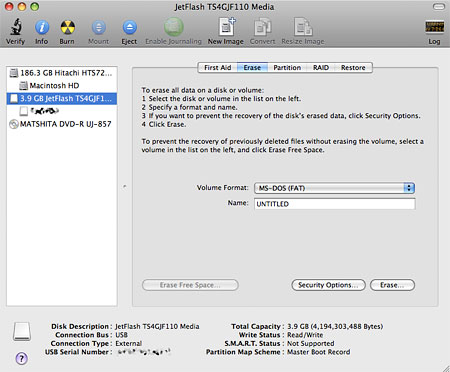
2.) Open up Disk Utility (Applications > Utilities) and select your flash drive on the list to the left.
Reformat your USB flash drive to access its full storage capacity

3.) Choose the Erase tab near the top of the window and select MS-DOS (FAT) from the Volume Format drop-down menu. This is required if you want your drive to be Windows-compatible.

4.) Give your drive a name (keep it short with no special characters).

5.) Finally, press the Erase… button and your drive will be wiped clean.

This process will give you access to your USB flash drive’s full formatted storage capacity. If you backed up the drive’s data to your desktop, you can copy it back and use it just like before — with more free space!

Share/Save/Bookmark
Share/Save It
Digg ThisStumbleUponDel.icio.usTwitterFacebook

14 Comments Have Been Posted (Leave Your Response)

Thanks! This was very helpful.

This Was SOOOOOO Helpful

I’ve had my macbook for about 7 or 8 months, and i still know very little about it, because i haven’t taken the time to explore it and what not

But this was sooo easy, and soooooo helpful

thank you SO much!

Thank you so much for this post!! It was extremely easy to follow and worked like a charm!! :) I can use my flash drive again!! :)

SO HELPFUL! THANKS FOR THE EASY-TO-FOLLOW DIRECTIONS!

Thanks for the walk-through. I brought USB drives infected with malware home from work and reformatted them for Mac, just to make sure the malware was really really dead. Then, I took them back to work to be reformatted on the healed PCs.

Wow, Thank you so much! I had no idea about any of this! I routinely go between my Mac and clients’ PCs, so I was down to 4Kb of space left! On a seemingly empty USB!

Thanks again!

Thanks a bunch!

Thank you so much, I was convinced my flash drive was as good as dead, but this has solved the problem!

Thanks!

Awesome tip! It was making me so frustrated when I couldn’t save all my files although it looked like there was enough space.

Thanks! Worked like a charm!!!!! Sherri

Thanks! that totally worked! and was super easy. my 2gig drive wouldn’t let me put 10mb files onto it even though it had plenty of room (supposedly). I did your erase tasks and it works like a charm.

THANKS!!!! super-easy haha

Man, that just saved my butt. Had a presentation to give in front of 45 stakeholders and saw that my thumb drive had run out of space. So happy that it worked. Thank you.

Thank you!!! veryyy helpful especially for a beginner

Have Something To Say? Join The Discussion!

  (required)
  (required; will be kept private)
  (optional)