



Subscribe to MacYourself via RSSSubscribe to MacYourself via EmailFollow MacYourself on Twitter
Apple Products and Accessories from Amazon.com

Why doesn’t Mac OS X’s green Zoom button maximize windows?

Why doesn't Mac OS X's green Zoom button maximize windows?

If you are perplexed as to why Mac OS X’s green Zoom button doesn’t always maximize windows to full screen like in Microsoft Windows, there’s a perfectly good explanation. In fact, it truly makes sense when you think about it.

As mentioned in MacYourself’s previous article, “Mac switchers: 7 Windows concepts & habits you need to let go,” the biggest hurdle many new Mac users face is their own frame of mind. Rather than trying to make Mac OS X work like Windows, the best approach is to start fresh and be open to different ways of doing things. The Windows-based habit of maximizing windows to fill the entire screen is just that – a concept from Windows. The Mac’s green Zoom button – called the plus (+) button by some – is meant to behave differently. And, even though it may seem erratic and random at times, there is usually a method to its madness.

Real world examples

In order to best understand the green Zoom button found in the upper-left corner of each window, let’s study it’s behavior with a few different applications. In Finder, the Zoom button toggles between the small window size I set for myself and a tall window size Finder chose for me.
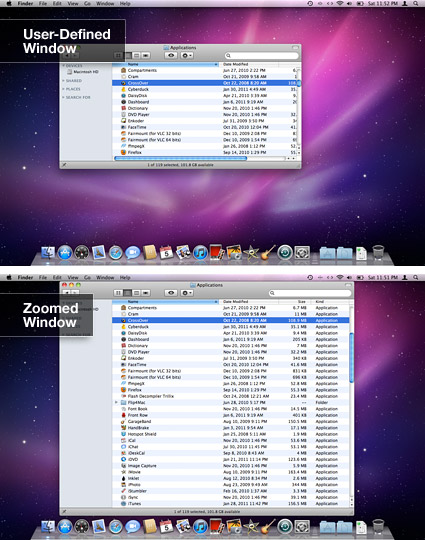
Mac OS X Zoom button in Finder

Why did the window get taller and slightly wider, but not quite full screen? Because there was enough content in the window to fill the screen vertically. Horizontally, there was nothing left to show other than white space – so Finder decided not to display it.

Now let’s look at Apple’s website in Safari. Notice the first image below is a very small window with both vertical and horizontal scrollbars. The second image shows what the window looks like after clicking the Zoom button. Again, it takes up all of the vertical space because there was more scrollable content to be seen. The third image illustrates what the screen would look like fully maximized Windows-style.
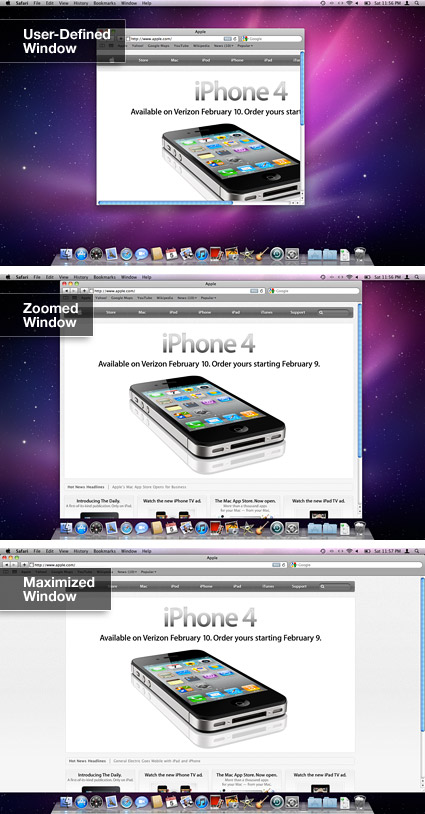
Mac OS X Zoom button in Safari

Notice the wasted blank space on both sides of the maximized window and how it serves no purpose? That’s why the Zoom button ignored that empty background. It analyzed the web page I was viewing at the time and sized the window to match its content. Try web pages with a different width and it will size the window differently each time, depending on what’s on screen.

Of course, there are a number of applications in Mac OS X that appear to go full screen when the Zoom button is clicked. Mail, iCal, and iPhoto (among others) can be “maximized”, for example. Isn’t that inconsistent with the two cases shown above? Actually, quite the opposite. iPhoto can display more images at once when the window gets bigger, so there is enough content to justify filling the screen in all directions. The same goes for iCal – it can show the entire month’s view and give each day a bigger space to fit its events. There are functional reasons for blowing the window up to that large of a size and the Zoom button is intelligent enough to determine when and when not to do it.
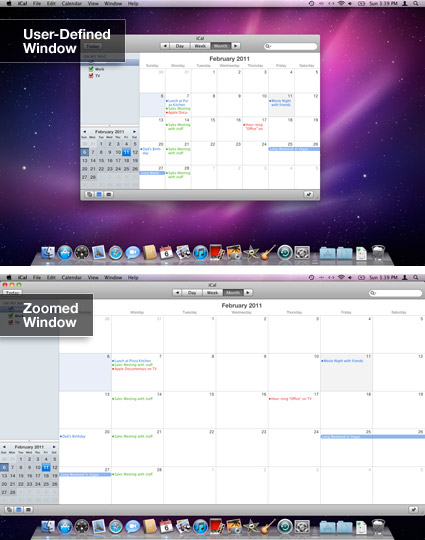
Mac OS X Zoom button in iCal

Modern concepts

The idea of maximizing windows might have been a good one back in the day when monitors could only display a small 800×600 pixels. Now that we have high resolution widescreen displays, however, making every window full screen no longer makes sense. It will usually result in wasted screen space that could otherwise be used to show more content at once. For instance, you could have your iChat buddy list and a chat window open alongside Safari as you browse. If Safari was maximized, you’d have to manually switch back and forth between the two applications to check your updated buddy list and read new IM’s.

But what about those who prefer to maximize their applications so they can focus on the content without distraction? Rather than making the window bigger and covering background windows with useless empty space, Mac OS X has a handy feature called “Hide Others.” Just press Cmd+Option+H on the keyboard or hold the Option key, right click on your current app’s Dock icon, and select “Hide Others” from the menu. Now all you’ll see is the window you want to work with while the others are hidden from view – no clutter and no unnecessary wasted space.


Tags: , ,

23 Comments Have Been Posted (Leave Your Response)

Great Article. Next time someone asks me why isn’t “the maximise button working?” I can point them here!

I was a bit disapointed with this issue but now I use SizeWell (http://www.sizewellplugin.com/) which is ultimate!

All the best

Apparently, not being able to view as much data as possible is an Apple concept.

That figures! :)

Still waiting for the iThink, where apple-users don’t even have to think for themselves anymore.
By then, your whole life will be ‘iLive’d for you.

“It’s not a bug, it’s a feature” is a concept apple is still able to sell.

Dan, I’m sure you’re just trying to make a joke, but did you even read the article? I thought it clearly showed that OS X does show as much data as possible when it’s available. If there’s nothing to show, what’s the point of maximizing?

> If there’s nothing to show, what’s the point of maximizing?

Because things change. I understand the concept, only enlarging the window as large as it needs to be. But my Mac is not a good mind reader and inevitably, a few minutes later the window needs to be larger, so I must click on the button again.

In this instance, imho, Mac has it wrong and Windows has it right.

My Mac tells me how to think. Instead of adapting to me, it forces me to adapt. I want a full screen all the time so I can focus on what I’m working on. I don’t want to see purple, or other windows in the background. I don’t want to have to click three buttons to do something that should only take one (“CMD+Option+H” vs. + button).

Mac has many features that beat Windows, but this isn’t one of them. Maybe mac could add a full-screen button next to the + button, or allow users to change the zoom-button settings in preferences according to the desires of the user.

Until then I fell my mac is annoying and could use serious improvement in certain areas like this one.

or you can click + while holding shift and the window will maximize correctly :)
found this a week ago on my 2nd day as a Mac user

To the previous poster… the shift key doesn’t do anything. Maybe it works for you in certain programs, but definitely not all of them.

Hm… it’s certainly dfferent than Windows. But I’d be careful with using words such as ‘modern’. Have you by any chance taken a peek at the newest Mac OS incarnation’s feature called ‘fullscreen apps’ or sth along the lines?

I’m afraid modern means exatly taking over the whole screen. You may argue it’s because of the tablets and uniforming iOS/MacOS L&F, and you’d probably be right, but the fact remains.

For sake of satisfying all customers, from what I’ve seen, you will still be able to do things the old way, as fortunately full screen apps seems to be an alternative rather than a replacement.

But the change will come, if tablets and smartphones will contain their ‘ubiquitousness momentum’. And it’d be nice to use all these in the same manner.

Myself, I’m all for app taking the whole screen along with the menu bar. Humans are single tasked machines. I want the app I run to be my new context, and free of distractions of OS artifacts.

with Windows you can maximize and then zoom in to see text also what if you do not want the distraction of desktop wall paper?

another.required.username
August 12th, 2011, 2:37 PM

One could definitely argue that Apple is “iThinking” your life for you. Or you could simply chalk it up to being different from Windows.

I supported Windows machines for 10 years since I was 15. In that time, the Maximize button came in handy and I would have agreed with the “Humans are single task oriented” comment above. But when it was time for me to finally stop using company machines for my personal needs, I opted for an Apple. I opted for the Apple to avoid explanation-less blue screens and software written by one company that actually works well together, as though it’s designed that way. Personally, I was often left wanting more/better integration between Microsoft applications running on a Microsoft OS. But whatever…

In the end, the green plus button on Mac OS just works differently. If you don’t like how it operates, you can always just size your windows yourself as you do with Windows. Close the window, and typically it reopens with the size you last used. Last I checked, Windows worked similarly too.

If you love Windows that much, just shut up and use it. Why hover around a Mac focused website just to piss all over someone else’s time and effort to educate others?

Wow..this was one thing that always puzzled me when I had to work with a friend’s Mac..I thought he had screwed up some OS setting – I didn’t realize this was the defaul behavior. It really sucks.

One when is working on a screen for any duration of time..one would like to work without seeing the shinies in the background..and typically you need to keep pressing that stupid button if your content increases.

This is LAME.

Just a thought – instead of saying how awful it is, why not just use the powers of the Internet to find a solution to it (http://www.macupdate.com/app/mac/30591/right-zoom might work)?

Would have to agree with a.r.u and Ant – It’s not Windows.. It’s not meant to be Windows.. It wasn’t designed for Windows users.. =)

Having also used Windows for 15+ years and only switching to OS X in the previous month I have to say I’m quite enjoying it – So the green button doesn’t maximise to full screen (why bother having it in a window at all then?) but using other tools like jitouch’s expanded gesture control (http://www.jitouch.com/) to quickly resize with the flick of a fingertip gives far more control and flexibility..

You know, I just stumbled across this article as a long time mac user who was wondering exactly what it was that button did, because it does seem somewhat random. In previous generations of Mac OS (like seven and eight) I did find it somewhat useful, but going to large screens and OSX I’ve started to find it a bit offputting. I resize all my windows myself.
That being said, having used many windows machines, and actually having owned a ThinkPad, I’ve got to say that the window maximise button has only ever pissed me off. I do multitask, whether it’s running office with a browser and maybe a pdf for reference, or simply running more than one browser window, and having only one window available for viewing at a time is simply stupid. Like this article says, lots of wasted space, and you have to go find your window before you can look at it. Or else suffer from a ridiculously clipped window that’s snapped itself to exactly half the screen. I like my windows floating around, and not taking up everything, thank you very much!
Now that’s just my opinion. To all you Windows users complaining out there, there are different ways of doing things, and they are all equally valid. Maybe you think that one is more equal than all the others, but that doesn’t make the others any less equal, does it?

Chalk me up on the “No Windows’ version is just better” crowd.

Firstly, browsing the web I don’t want to be clicking the + button every time I visit a page which is slightly wider.

Secondly, Fitt’s Law! It’s so much easier to hit the scrollbar in Chrome when it’s resting on the right hand side. I end up using the keyboard on the Mac because it’s harder to hit the scrollbar than on Windows.

Also, dragging windows around is hard! If you’re pixel perfect OCD like me it takes ages!

I think this should be an option. I’m cool with mac users preferring their intelligently randomsizing, they can have it. Just give me the choice. I do think you can go too far with too many choices. But I don’t think this is too far.

I just switched to Mac in July. I was wondering what this button did, and now that I see its purpose and can utilize it, I love it. The thing I have hated about mac is that it is hard to switch between windows. I don’t like to have to keep opening expose. with this, I can have a clean fit at the push of button. Since I have a track pad, I have programmed the trackpad to do a center top single tap as a shortcut for the zoom button. WOOT

This is the ONLY thing i hate about a mac. OK i get it that there’s nothing else to display on whatever im looking at. But then I go to the next web page or click a folder in finder that has a lot of files to display. NOW WHAT? You expect me to keep clicking the green button EVERY time to adjust my window size??? VERY inconvenient. at LEAST have the option of being able to set the green button to fully maximize or to “auto maximize” or something. Again I love my mac but this feature was probably the dumbest thing mac came up with.

Dude, “required.username”, I literally just filled out this dumb comment form (required email? really? I don’t want to chance being on a mailing list, of course I’m just going to put something fake!) to tell you how awesome you are.

This has probably only been my gripe with OSX, ever. For personal use and for development, the only thing that has consistently kinda irked me is the fact that I click “Maximize”, or whatever the green button is meant to be, and then when the window only goes to half screen I have to manually stretch it, spend 2 minutes trying to make it pixel-perfect with my screen edge because I’m OCD about it, and so on.

The holding Shift *does* work. If it doesn’t work for you, you probably aren’t on Lion. So to everybody here, to the author of the article, to OSX lovers everywhere – just hold shift, my esteemed internet bro-friend. Just hold shift while clicking the button and all of your woes will melt away like butter on the red-hot angry faces of all the trolls in these comments. To all the “aww snap man windows did it better this time”, I say you’re mistaken. To everybody saying “OSX forces you to blah blah blah, iThink hahaha get it I’m a comic genius!” you’re mistaken. OSX gives you the option to use a superior auto-adjusting window resizing tool, and now the option to have it function different if you’d like simply by holding a modifier. That’s +1 Steveyboy, -1 Billy…boy. Besides, I’m pretty sure most people using Macs as their go-to machines on a daily basis are pretty used to modifier keys from shortcuts, etc.

Anyways, thanks again “required.username”. If you’ve got the balls to post your home address on the intarwebnet I will mail you a steak. Go get a PO box. One that’s refrigerated.

Don’t argue. Just install Better Touch Tool. It has window snaping like Windows 7. Anytime you need a window maximized, you snap it to the top edge and you’re done. w00t!

I found this article looking for a keyboard shortcut for the plus button which now I found it has to be customized. I’ve been a Windows user since 3.11 and I too was confused about what the plus button did at first. For those that are complaining about it not taking up the full screen in Safari theres an easy way. All you have to do is zoom the website you’re on. On my laptop I do a two finger double click or double right click. You can also use the keyboard shortcut “command +” Once the content on the page is too big or just enough to fit on the screen when you hit the plus button it will fill the screen. If you close the window like this it will remember it for the next time you open a window. Also you can upgrade to Lion and use the new full screen feature.

I can understand Apple’s intention, even if the implementation doesn’t always work properly (witness iTunes on a secondary monitor which does not fill the vertical space even though there is plenty of content left to display).

But why not offer a global preference allowing the option for it to behave Windows-style, filling the entire space?

problem is I want all content to be visible, so after dragging around windows when viewing multiple at once, and then maximize, I want it to be centered, able to view easily. help mac, be smarter! I want this and know I’m right. So many smart solutions how can you continue to neglect this?

Have Something To Say? Join The Discussion!

  (required)
  (required; will be kept private)
  (optional)