


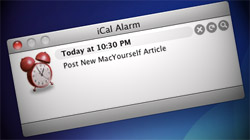
Do you ever get tired of manually changing the default alarm sound in iCal from “Basso” to something of your choice? Do you hate having an alarm sound at all? Take care of this annoyance once and for all.
So you’ve configured iCal to add a default alarm to all of your new events by going to iCal > Preferences > General and checking the appropriate box. Then you put in your desired warning time in minutes before the event’s start time. [Quick tip: Try putting something like 1440 minutes (24 hours x 60 minutes) to give yourself a full day or more before the alarm goes off]. Perfect, your default alarm is all set up! Except every alarm has the “Basso” sound effect attached to it.
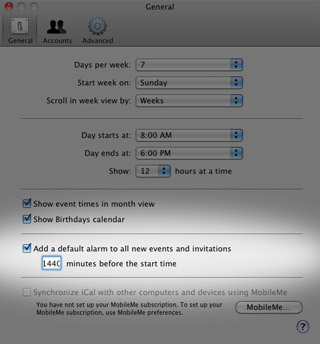
If you prefer to use another sound effect, you have to manually change it every time you create an event. And if you just want “Message” instead of “Message with Sound” as your alarm, you have to do that manually too. At that point, why even bother with an automated alarm in the first place? Don’t give up quite yet – there are ways of getting what you want, even if iCal makes it difficult.
Step 1: Alarm Setup
Before diving in, make sure you have a default alarm configured in iCal’s preferences, as described above. If you would like to use one of Mac OS X’s system sounds (other than “Basso”) for your alarm, make note of its name and skip to Step 3.
Step 2: Custom Sounds
For those looking to use a custom sound effect, find one you like from your own collection or somewhere online. It can come from any source but should be short – no more than a few seconds at most. It also needs to be in AIFF format, which can be accomplished with a free converter like iTunes or Switch. When you have your AIFF audio file, use Finder to copy it to ~/Library/Sounds in your home folder. If there isn’t a Sounds folder already there, you can create one yourself.
If you’re like me and don’t like any sound at all when iCal throws up a notification, I’m sorry to say there doesn’t appear to be an official way of setting a silent default alarm. What we can do, though, is use a blank sound file to trick iCal into thinking it’s making noise when it’s really not. Feel free to download the silent audio file I use myself (“Blank.aiff“) and save it to ~/Library/Sounds in your home folder.
Step 3: Editing iCal’s Preferences File
There are dedicated tools for editing Mac OS X preference files, but most people won’t be doing something like this very often and therefore don’t need to install an application for one-time use. So we’re going to use just the tools built in to every Mac.
Launch Terminal (Applications > Utilities) and run the following command:
plutil -convert xml1 ~/Library/Preferences/com.apple.iCal.plist
Now launch TextEdit and open the “com.apple.iCal.plist” file from ~/Library/Preferences in your home folder. The document might look complicated, but you just need to look for the <dict> tag towards the top. Create a new line right below it and paste these two lines:
<key>Default alarm sound</key>
<string>Blank</string>
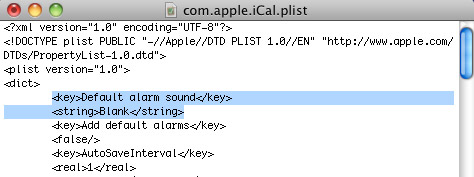
The second line refers to “Blank.aiff” – the silent audio file I created. Replace it with the name of whatever sound effect you’re using, whether it is a pre-existing Mac OS X system sound or your own custom file. Make sure it’s just the name, though, not the file extension or path.
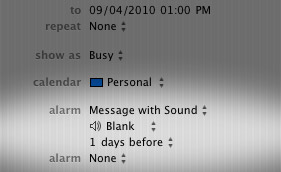
Save the .plist file in TextEdit and restart iCal. When you create a new event, your chosen alarm sound should be selected there instead of the standard “Basso”.








 Loading ...
September 5th, 2010, 3:04 AM
Paul,
You shouldn’t have to do any converting of files other than running the Terminal command before you open it in TextEdit. Make sure you just save the .plist file (overwriting the old one) when you’re done, rather than saving as a new file. It might also help to have iCal closed while you’re working with the preference file.